
- For Companies
- Invoices & Payments
Where can I access invoices to my company?
Modified on: Fri, 30 Jan, 2026 at 2:46 PM
We understand that managing invoices is a crucial part of running your business smoothly. This page provides clear answers to the most common questions our users have. Our goal is to make your experience on our platform as seamless as possible, ensuring you have all the information you need at your fingertips.
Here is a guide to help you make the most of this feature.
Where can I access invoices for my company?
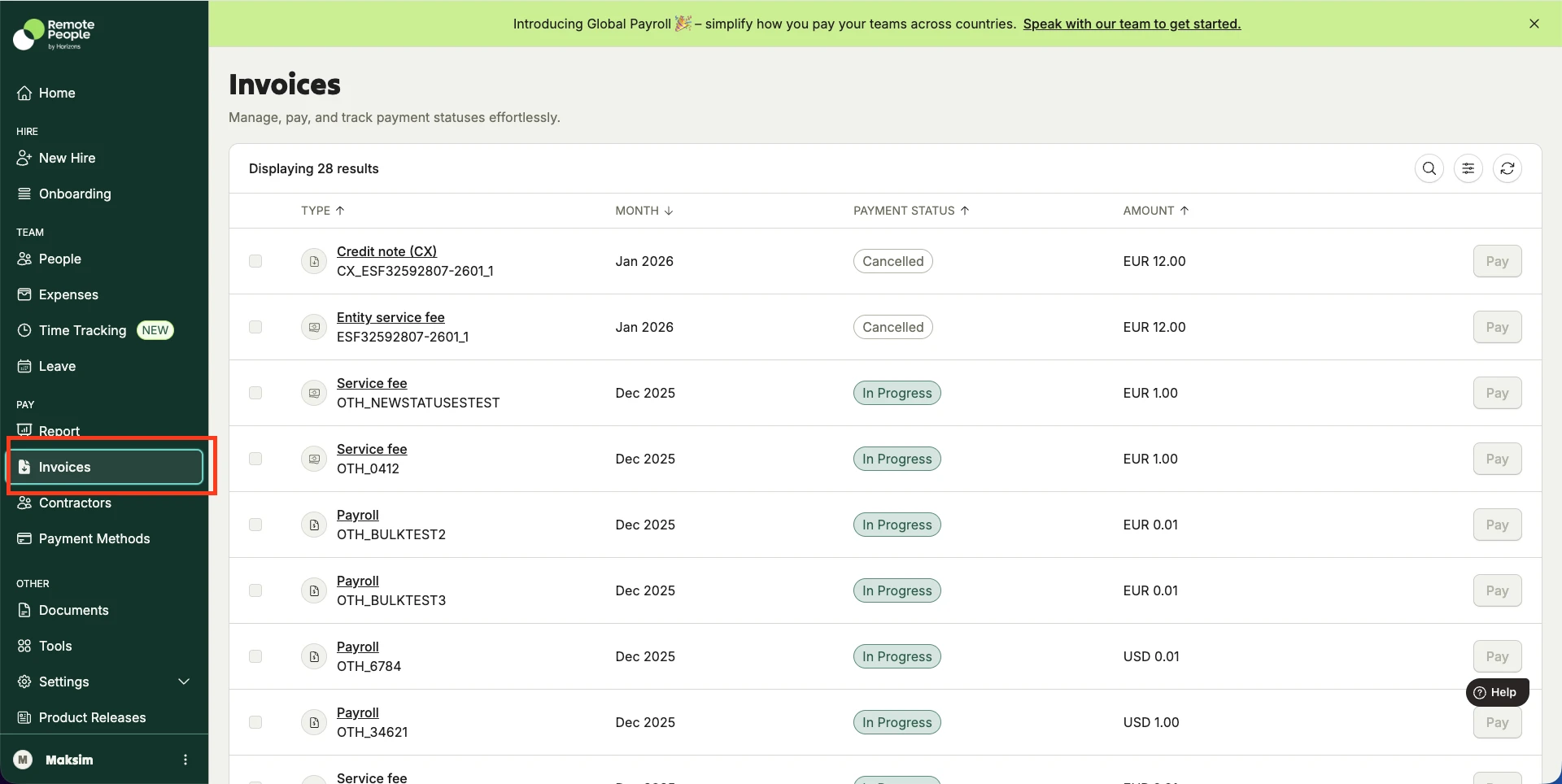
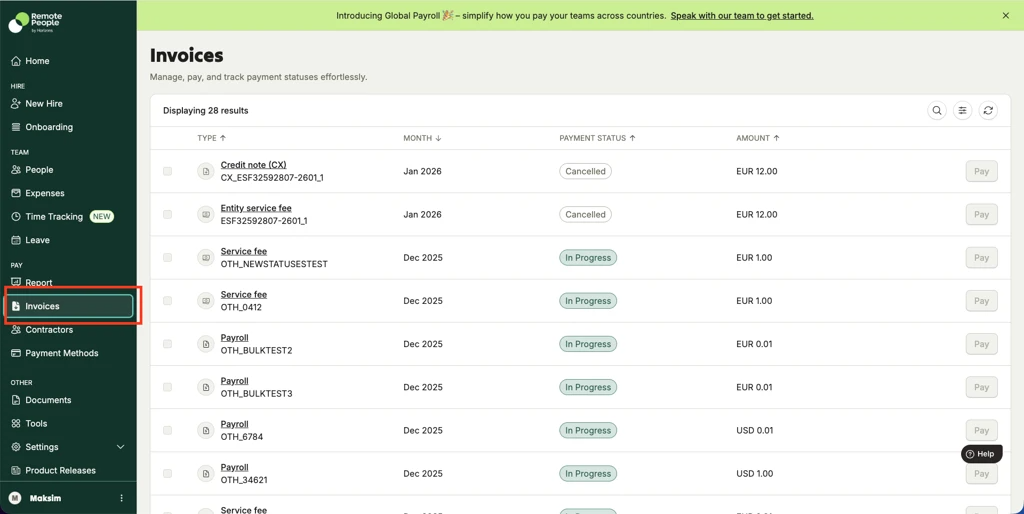
Once you log in to our platform, you’ll find the “Invoices” option on the left-side menu under the Pay section.
How can I find specific invoices?
Finding a specific invoice is simple with our platform. Invoices are organized by different statuses, so you can easily see which ones require immediate attention.
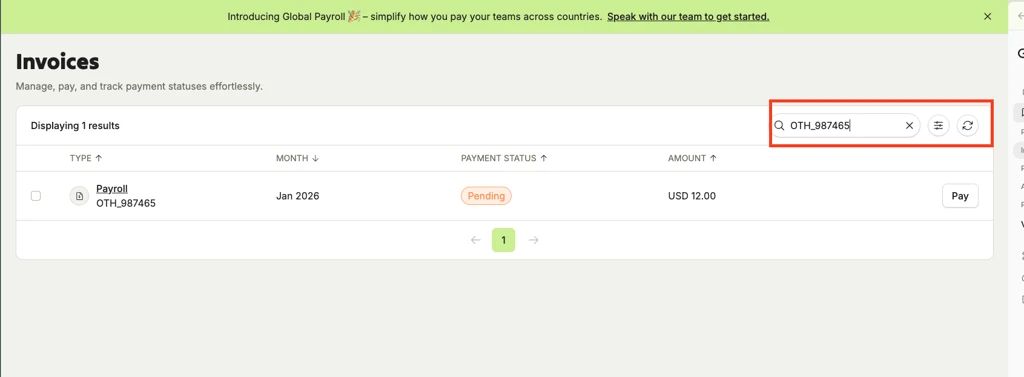
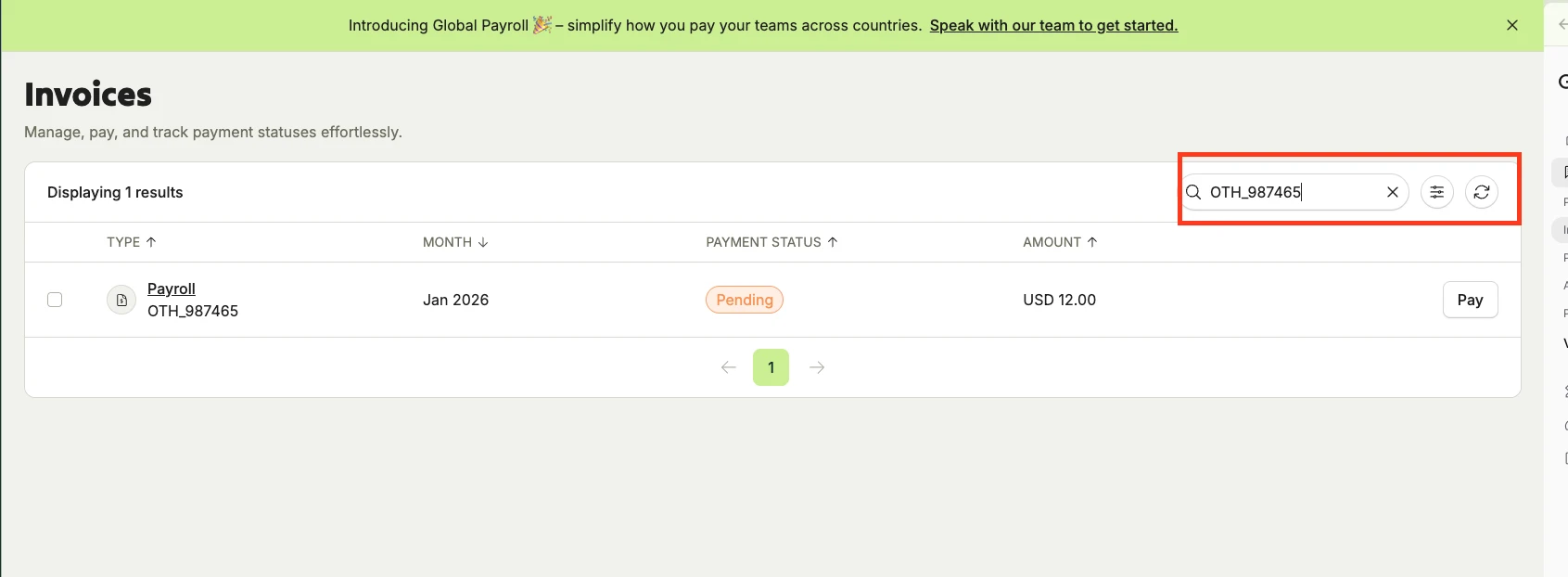
To search for a specific record, you can use the Search icon to look up invoice reference numbers (e.g., OTH_6784).
Using Filters
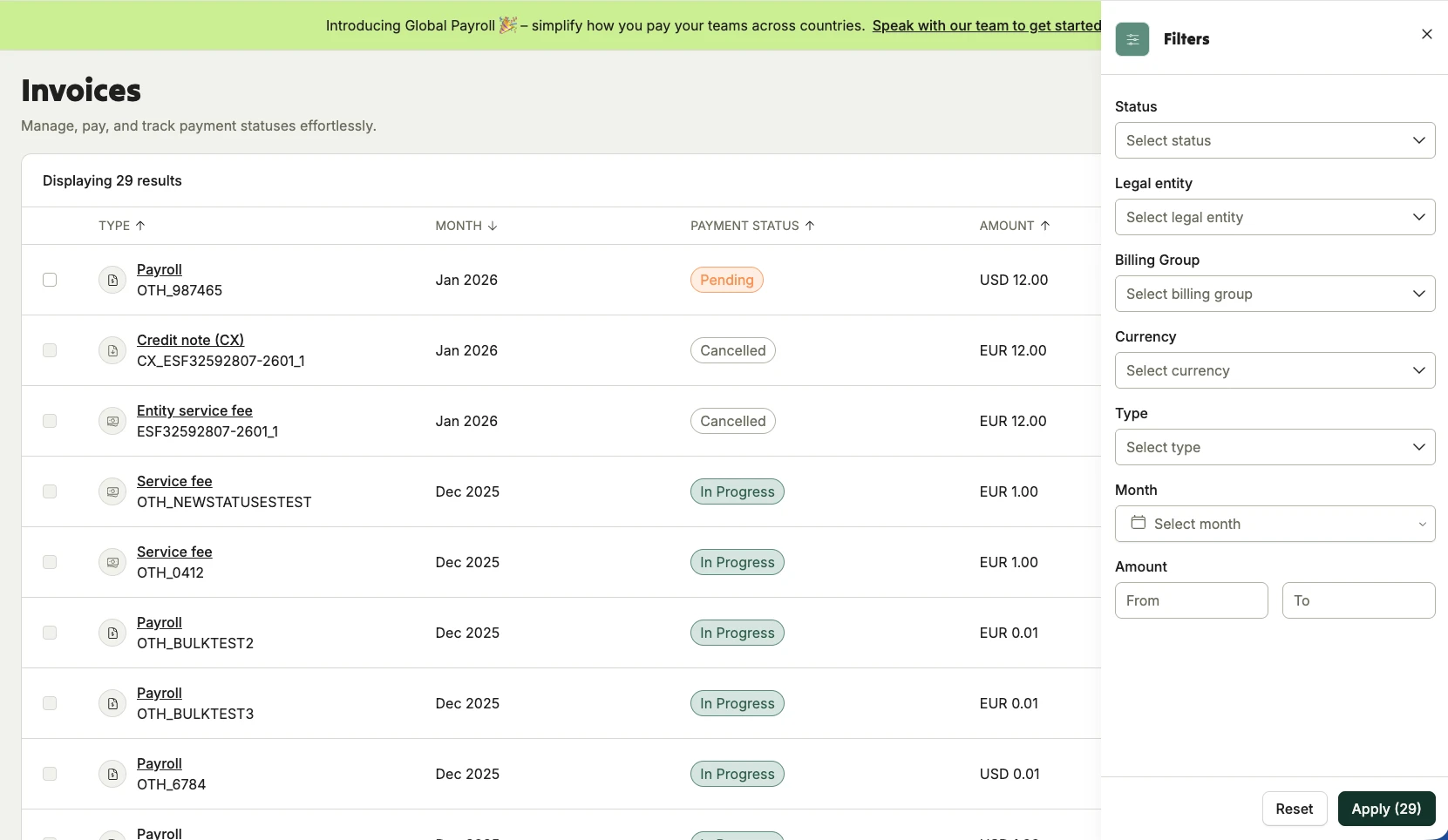
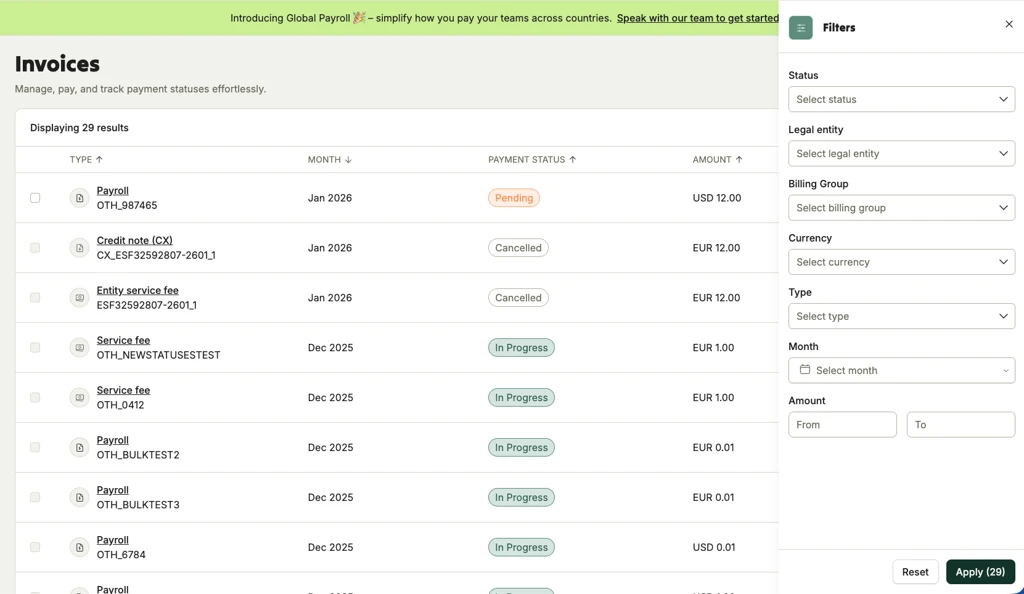
To apply more detailed filters, click on the Filter icon at the top right of the table. A right-side bar filtering menu will appear, allowing you to narrow down your results by:
- Status, Legal Entity, Billing Group, Currency, Type, Month, or Amount.
Once you have selected your criteria, click the Apply button at the bottom of the sidebar to refresh your list. You can click Reset at any time to clear your selections.
How to Pay an Invoice
When you are ready to settle an outstanding balance:
- Locate the invoice you wish to pay and click the “Pay” button on the right.
- In the Invoice Preview window that appears, you can select your payment option:
- Bank Transfer: If you do not have a payment method saved, the platform will suggest a Bank Transfer. Selecting this will show the Preferred bank option and full bank details required for a wire transfer.
- Online Payment: If you have already added a payment method, the “Pay Now” button will be available, allowing you to complete an online payment instantly.
Note: Only clients under the Horizons Global Technology Pte. Ltd. billing entity are currently eligible for online payments.
Bulk Invoice Payment
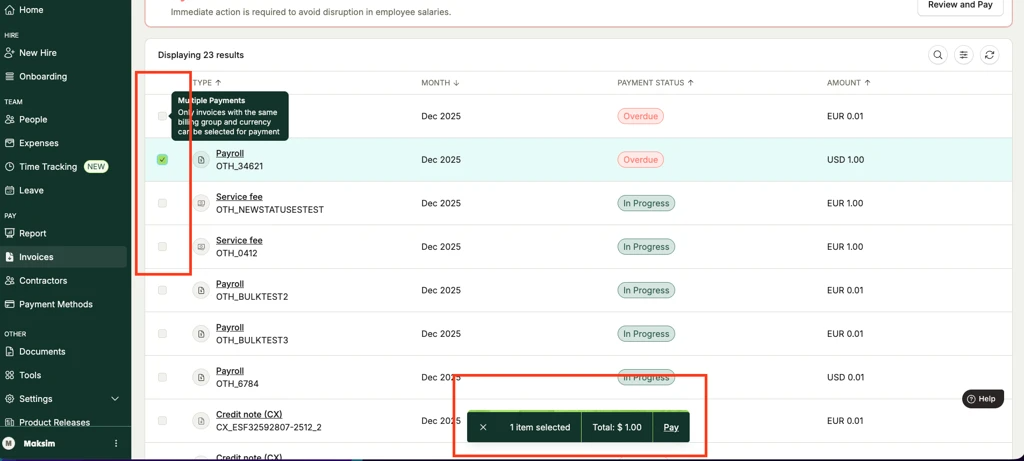
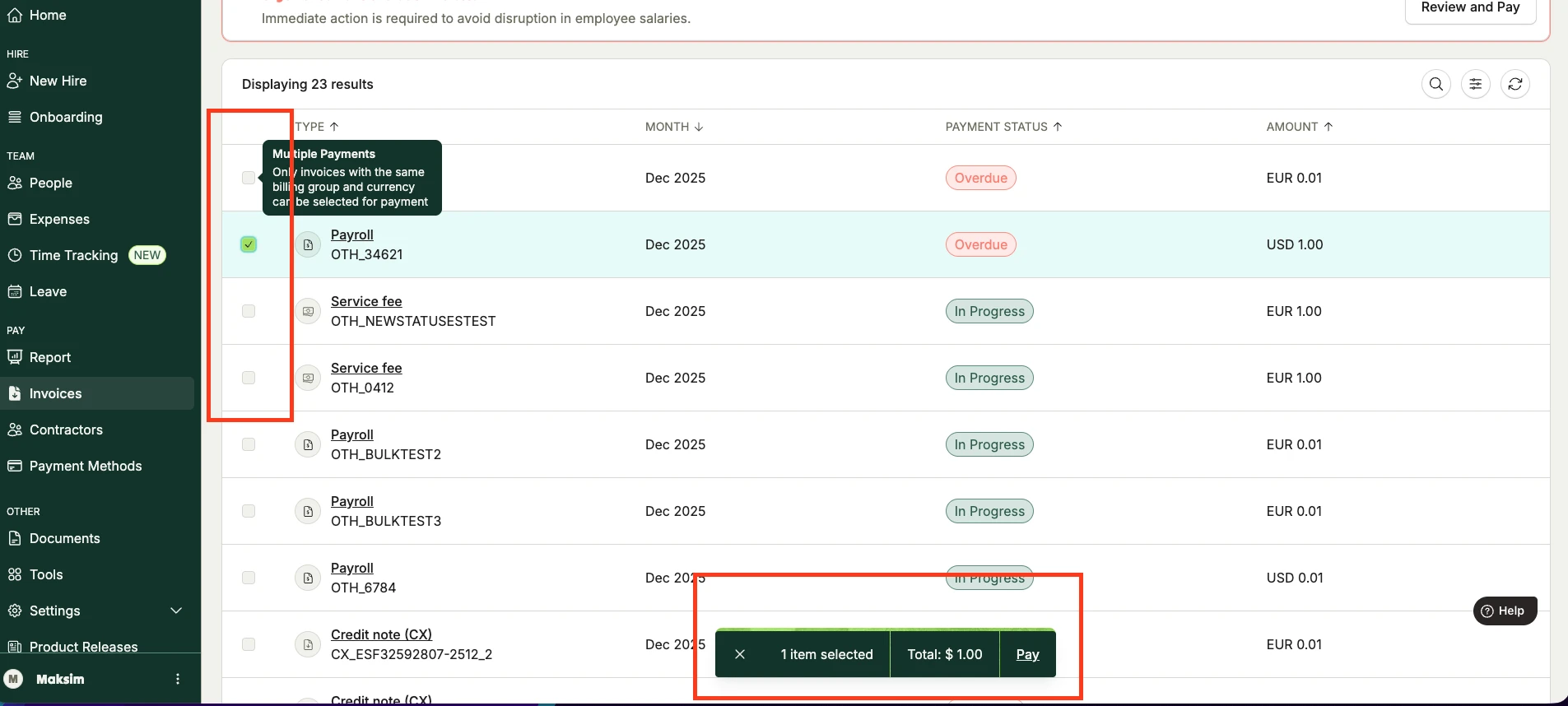
You can save time by paying multiple invoices at once. To do this, select the checkboxes on the left of the invoice rows.
Conditions for Bulk Payment:
You can pay invoices together only if they meet these two requirements:
- All selected invoices belong to the same billing entity.
- All selected invoices are in the same currency.
When you submit a bulk payment:
- One single payment is created for the total amount.
- Each invoice remains individually recorded and tracked in your history for clear accounting.
Was this article helpful?
That’s Great!
Thank you for your feedback
Sorry! We couldn't be helpful
Thank you for your feedback
Feedback sent
We appreciate your effort and will try to fix the article