
- For Companies
- Employee Payroll
How to add a payout (non-recurring income) for employees?
Modified on: Thu, 5 Feb, 2026 at 6:46 PM
Non-recurring income is any one-time or irregular payment added on top of an employee’s regular salary.
Common examples:
Annual bonuses
Sign-on bonuses
Sales commissions
One-time project rewards
Special recognition payments
On the Horizons platform, you add these payments in the employee’s Compensation tab.
You must submit non-recurring income by the 15th of each month for it to appear in the upcoming payroll.
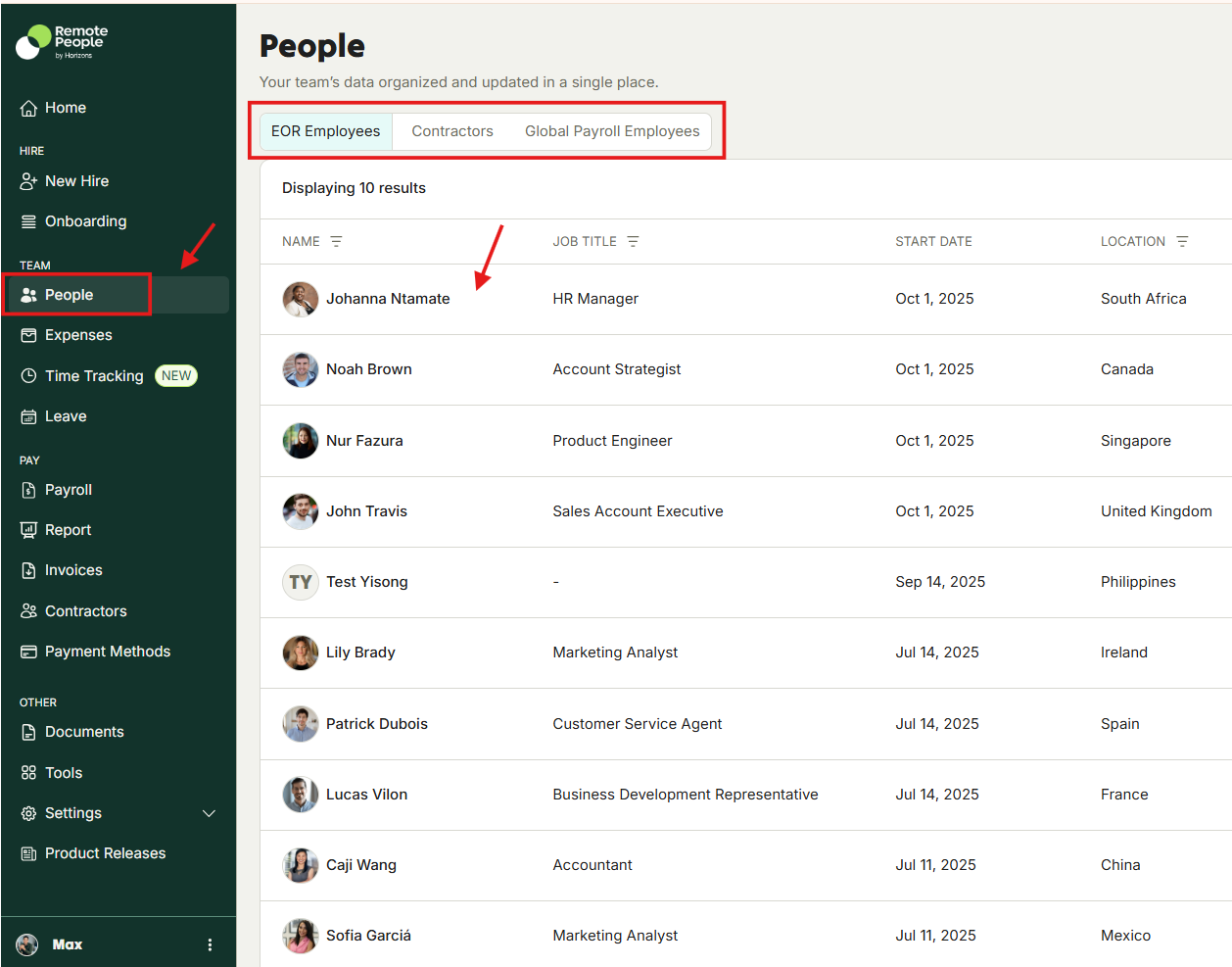
1: Log in to the Horizons platform.
Click People in the left menu.
Select the employee.
This opens the employee’s profile.
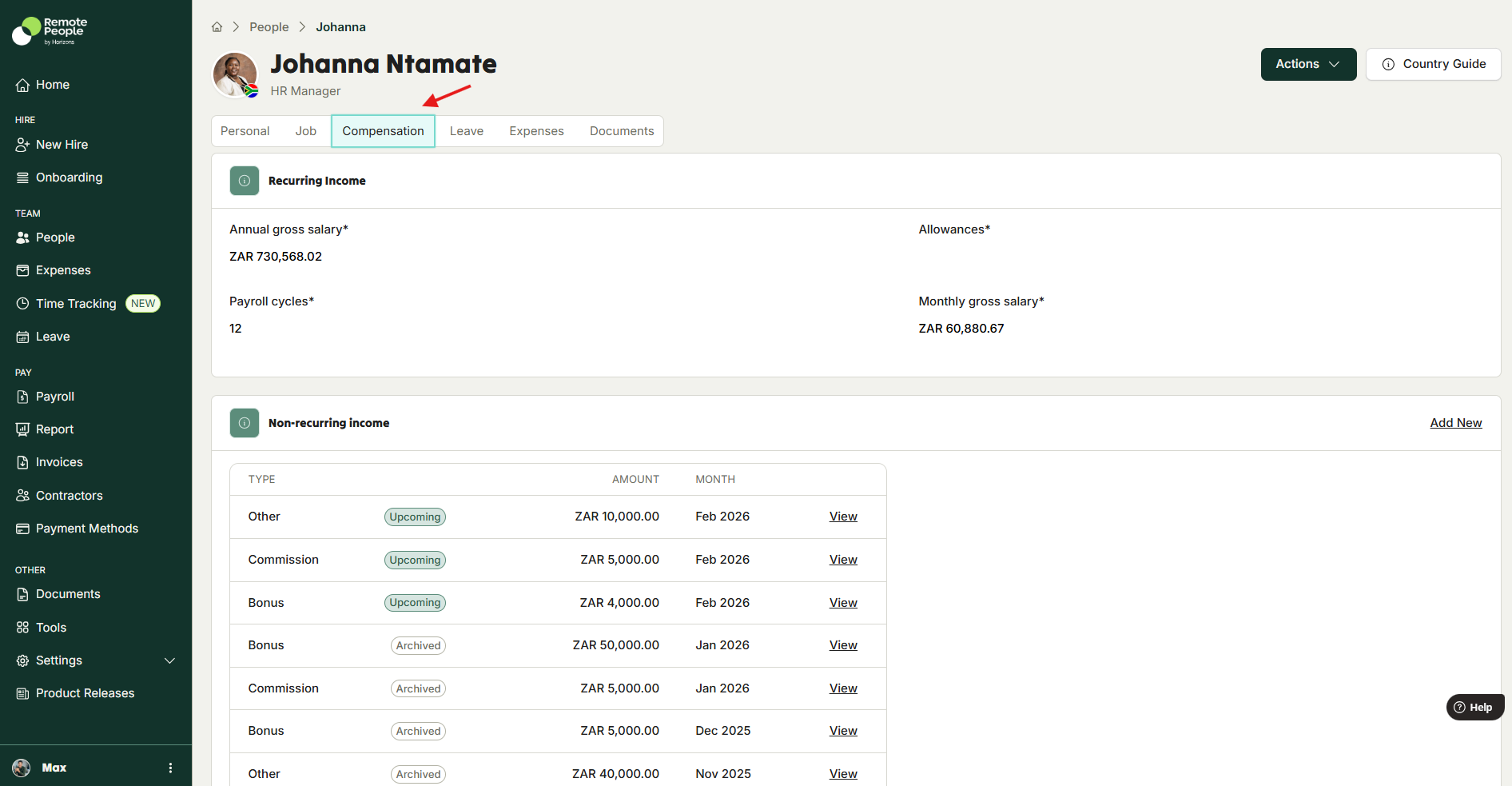
2: Go to the Compensation Tab and click Compensation.
You will see the employee’s salary and payout information.
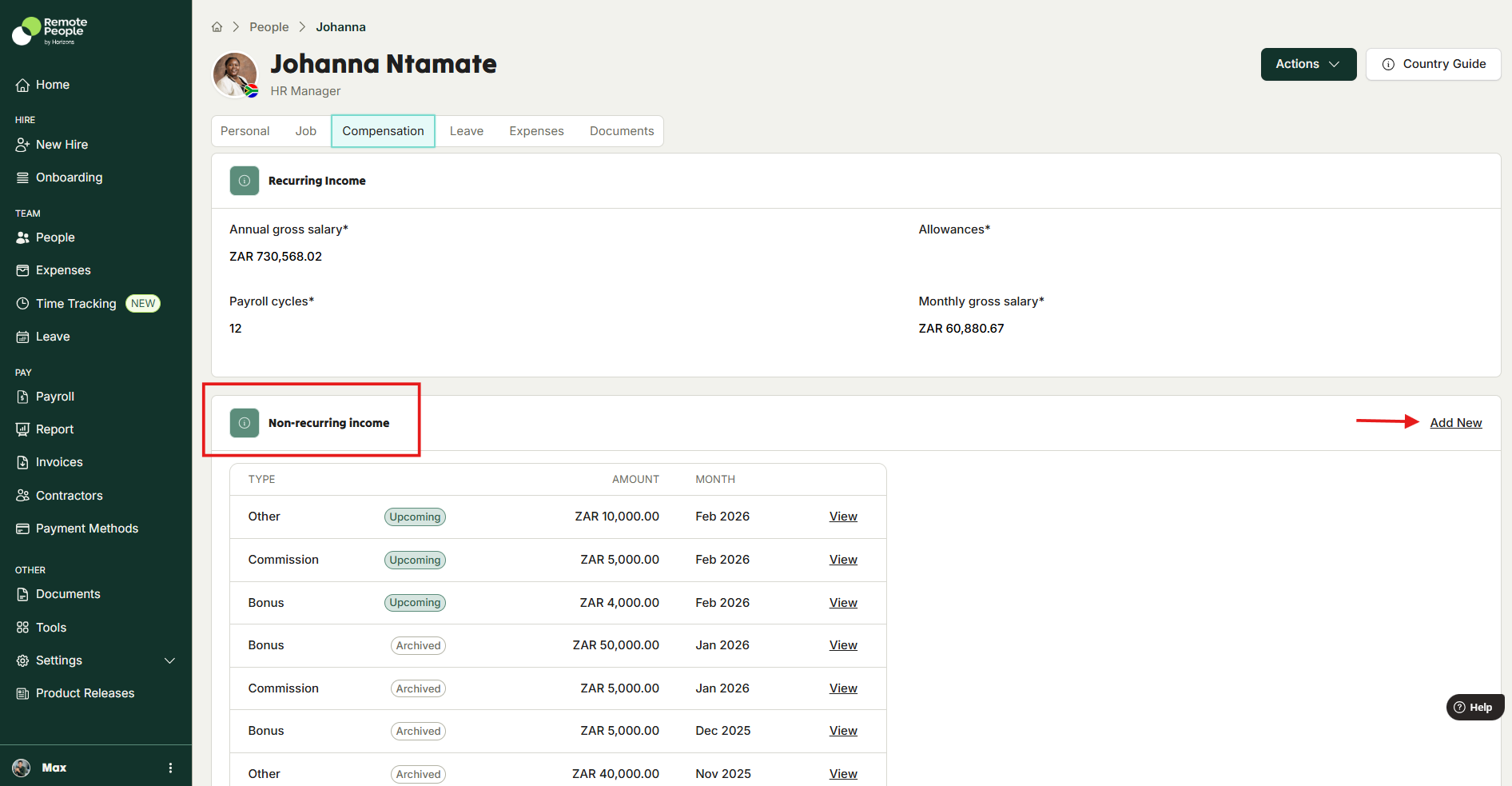
3: In the Non-Recurring Income section, click Add new.
A form will open.
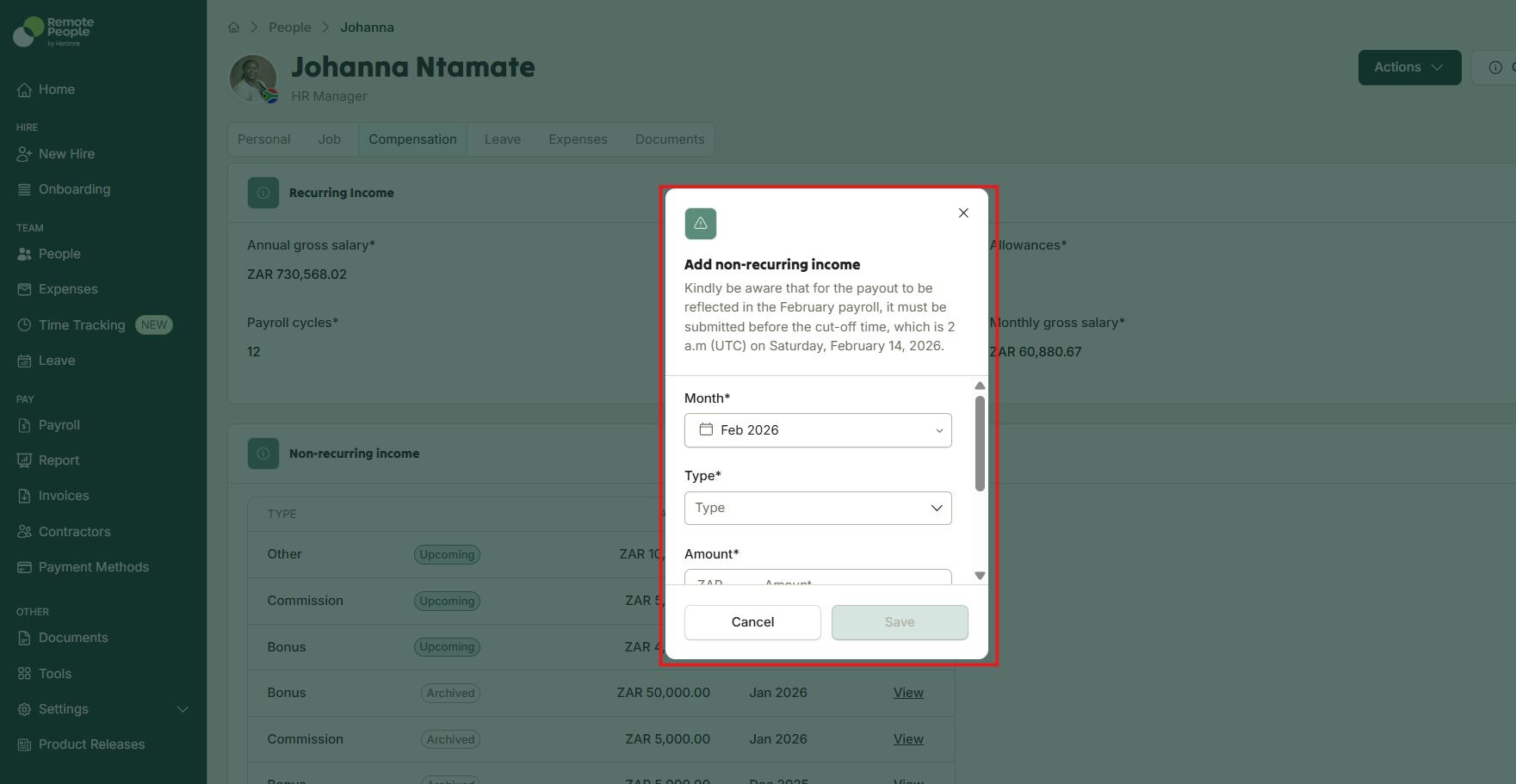
4: Enter the Payout Details
Fill in the following fields:
Payment month – When the payout should be paid
Payout type – For example: bonus, commission, incentive
Amount – Enter the total value
Note (optional) – Add any helpful context
Double-check the information.
Then click Save.
The payout now appears in the employee’s profile and will be included in payroll.
Can I Edit a Payout After Submitting?
Yes as long as you edit it before the monthly cutoff.
To edit:
Open the employee profile.
Go to Compensation.
Find the payout entry.
Click View.
Update the details.
Click Save.
Monthly Deadline
The cutoff is the 15th of each month.
Any payouts added after this date move to the next pay cycle.
We recommend submitting variable pay as early as possible to avoid delays.
Was this article helpful?
That’s Great!
Thank you for your feedback
Sorry! We couldn't be helpful
Thank you for your feedback
Feedback sent
We appreciate your effort and will try to fix the article