
- For Team Members
- Timetracking
How to Submit Hours in a Timesheet
Modified on: Thu, 12 Mar, 2026 at 10:54 PM
If your role requires time tracking, you must record and submit your working hours through the Remote People platform. Submitting your timesheet ensures your working time is properly documented and sent to the appropriate approver for review.
Follow the steps below to complete and submit your timesheet.
Step 1: Access the Timesheets Section
1. Navigate to the Timesheets section from the main dashboard.
This section allows you to enter, review, and submit your working hours for a specific period.
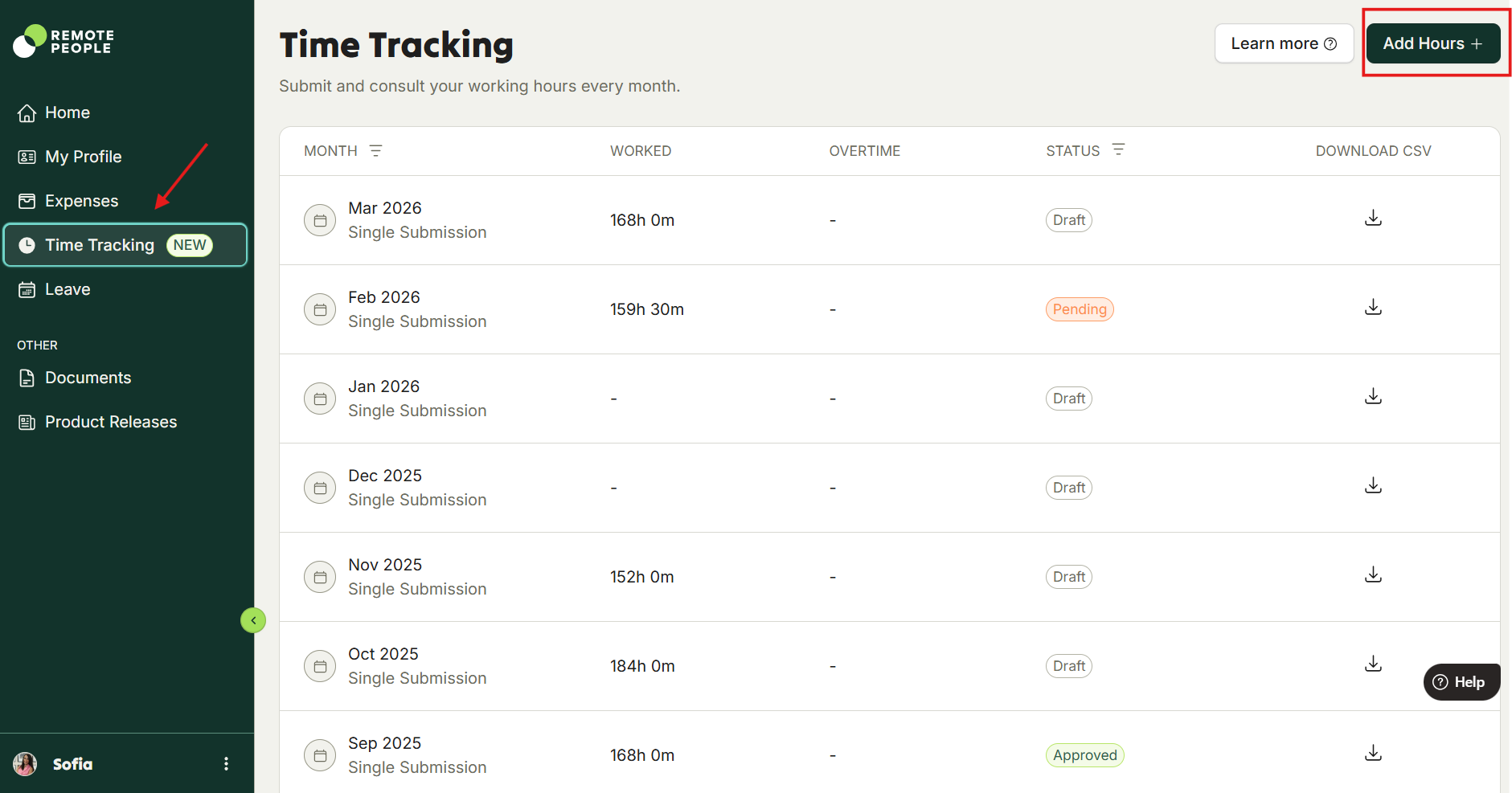
2. Open the timesheet for the relevant week or reporting period.
3. Confirm that the dates shown match the period you are submitting hours for.
Timesheets are typically submitted weekly, but the exact period may depend on your company’s setup.
Step 2: Enter Your Working Hours
For each working day:
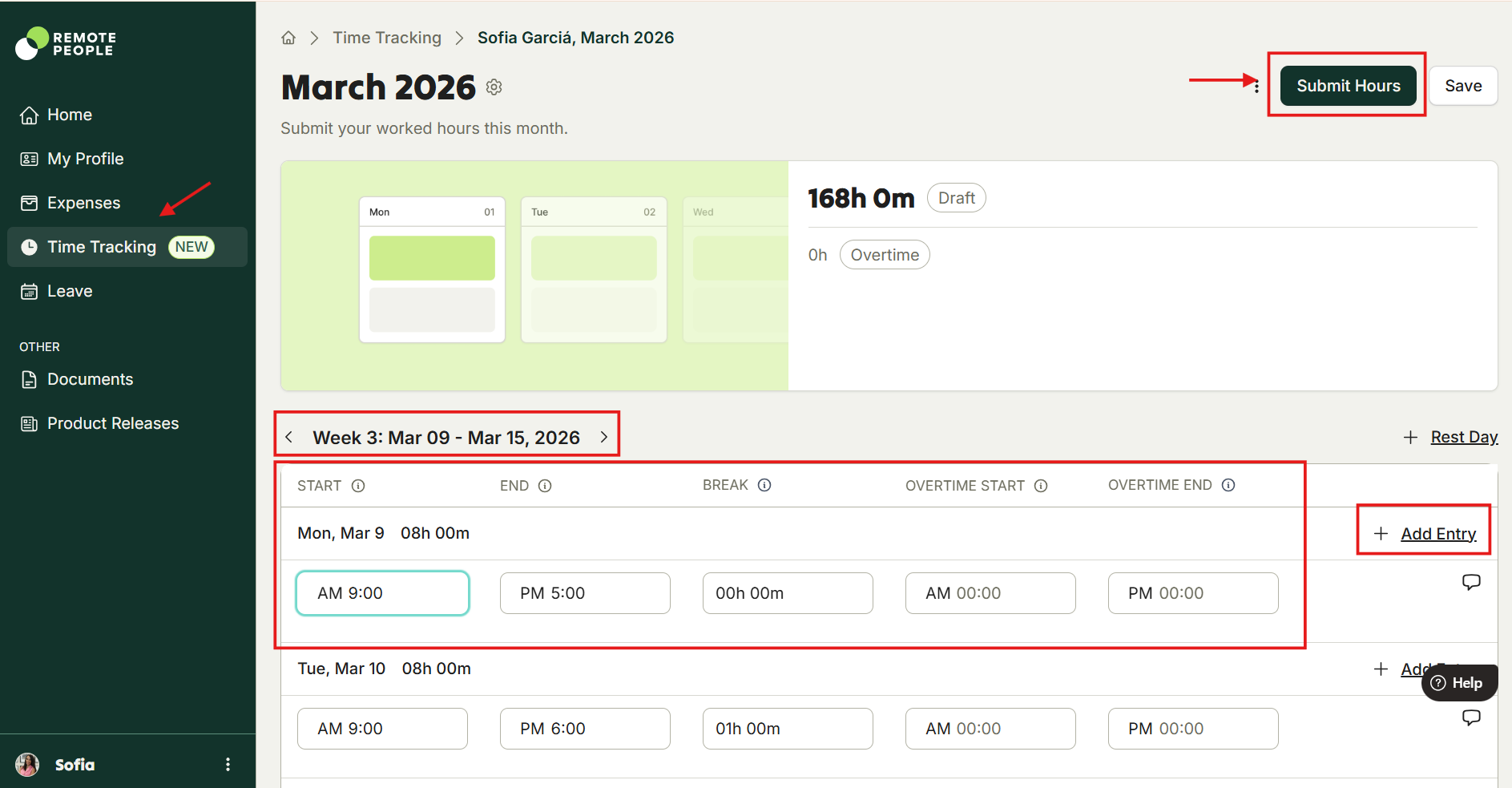
- Click on the relevant date.
- Enter the total hours worked for that day in AM/PM hh:mm format.
- If applicable, include:
- Breaks/Lunch: These are total amounts, so an example for these fields is 01h 00m.
- Overtime
- Different types of hours (if multiple categories are available)
- To add another row on the same calendar day, click on Add Entry and it will add a new row below, this row can be removed by clicking on the red cross. This is particularly helpful for multiple shifts on the same calendar day.
Remove any value by deleting it if you want to leave a day as a non-working day.
Make sure all days worked during the period are completed.
Step 3: Review Your Timesheet
Before submitting, verify that:
All working days contain the correct hours.
There are no missing entries.
Any required fields are completed.
Once a timesheet is submitted and approved, changes may not be possible without reopening or rejecting the timesheet
Step 4: Submit the Timesheet
After confirming all hours are correct:
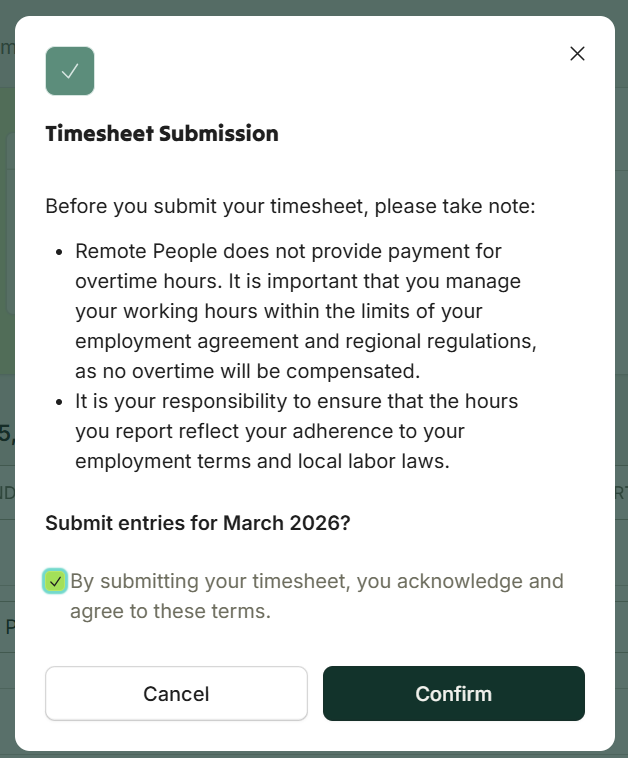
Click Submit Hours.
Confirm submission.
Your timesheet will then be sent to your manager or approver for review.
Note: the terms and conditions displayed vary depending on the employee's country and employment agreement conditions.
What Happens Next?
After submission:
The timesheet status changes to Submitted.
Your manager receives a notification to review and approve it.
If corrections are needed, the timesheet may be returned or rejected, allowing you to update and resubmit it
Depending on the type of timesheet your employer has set up for you, you’ll have one of the following submission types:
- Single Submission: Allows you to submit a timesheet only once, at the end of the month.
- Multiple Submissions: Allows you to make multiple submissions throughout the month, with flexibility on submission frequency. To make further submissions the previous ones need to be approved.
The difference between the types is these submission frequency, because the flow of submission and approval works the same way.
Was this article helpful?
That’s Great!
Thank you for your feedback
Sorry! We couldn't be helpful
Thank you for your feedback
Feedback sent
We appreciate your effort and will try to fix the article